

The Products section lets you manage the product catalog connected to CartPilot.
CartPilot uses your WooCommerce product data to answer customer questions, search your catalog, recommend products, and help shoppers find the right items from the chat widget.
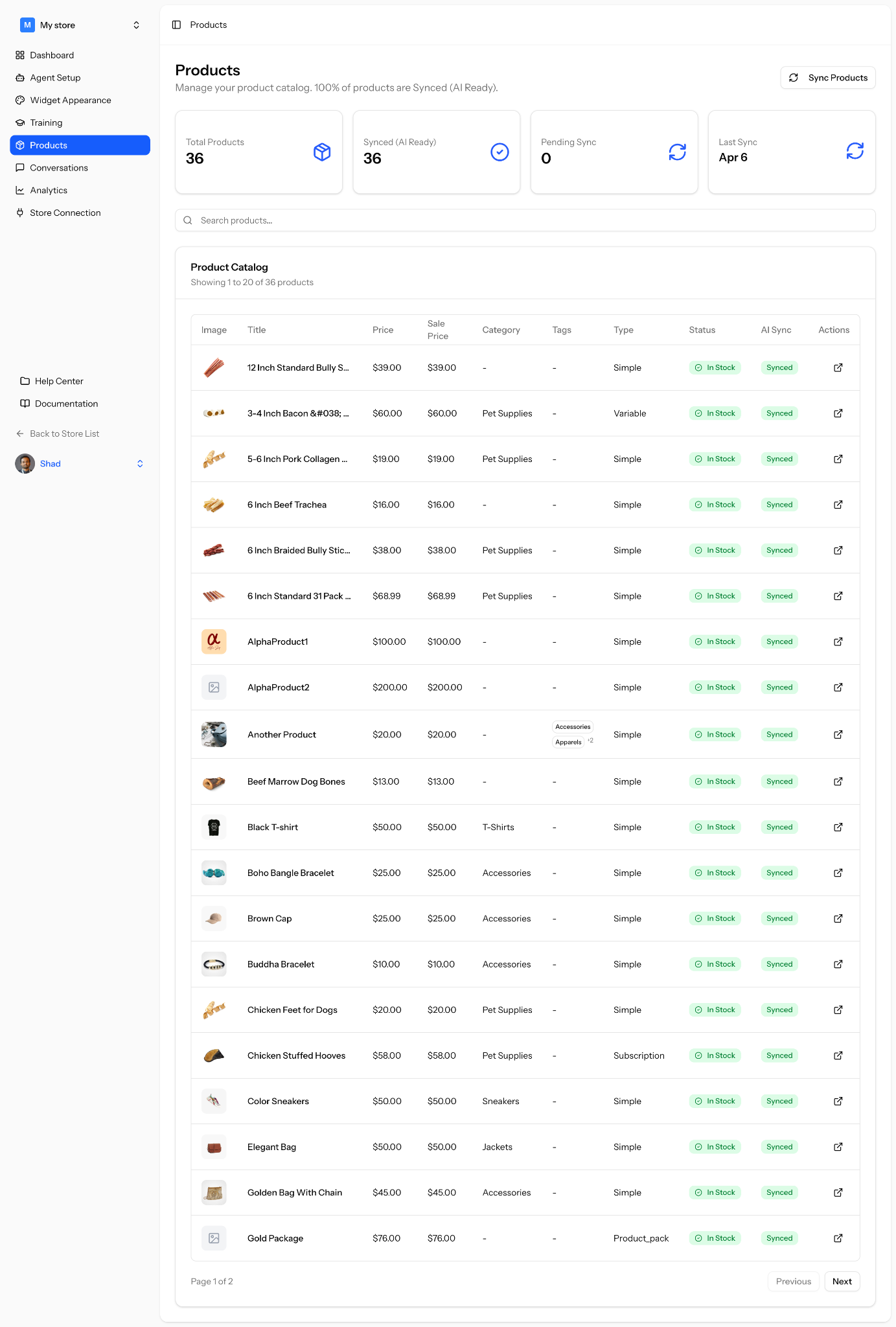
Product Sync Overview
Once your store is connected, CartPilot automatically syncs your products every 6 hours.
This keeps your AI agent updated with your latest product information, including product names, prices, categories, stock status, and product types.
You can also sync products manually anytime from the Products page.
Product Summary
At the top of the Products page, you will see a quick summary of your catalog.

This includes:
- Total Products
- Synced Products
- Pending Sync
- Last Sync Date
These cards help you understand how many products are available, how many are AI ready, and whether any products are waiting to sync.
How to Sync Products Manually
To manually sync your products:
- Go to the Products page
- Click Sync Products
- Wait for the sync process to complete
- Check the Synced and Pending Sync numbers
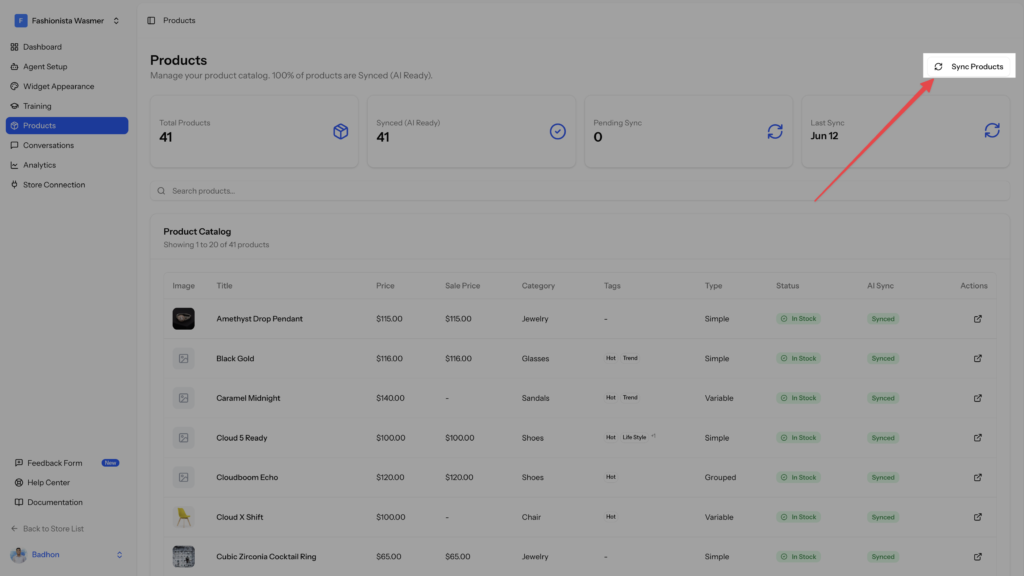
After syncing, your products will become available for CartPilot to use in customer conversations.
Automatic Product Sync
CartPilot automatically syncs your WooCommerce products every 6 hours.
This means you do not need to manually sync products every time you make a small update. If you add new products, update prices, change stock status, or edit product details, CartPilot will refresh the product data during the next automatic sync.
Use manual sync when you want product changes to appear sooner.
Product Catalog
The Product Catalog table shows the products connected to CartPilot.
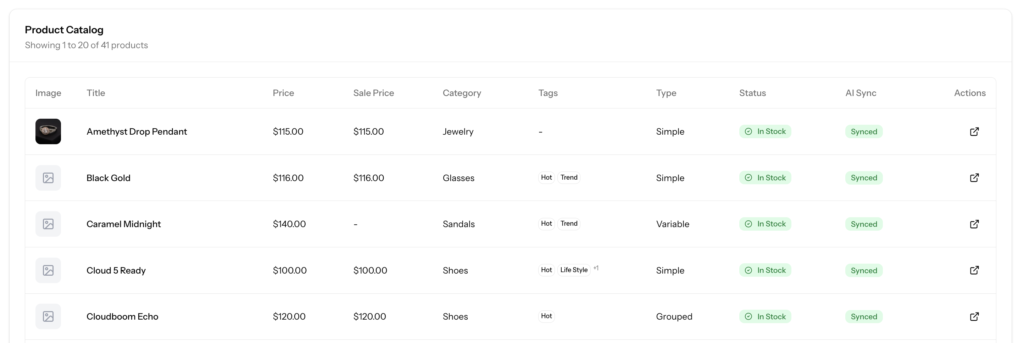
You can view:
- Product image
- Product title
- Price
- Sale price
- Category
- Tags
- Product type
- Stock status
- AI sync status
- Product action
This helps you confirm which products are available for your AI agent.
Product Status
Each product shows a stock status and AI sync status.
Common statuses include:
- In Stock
- Synced
- Pending Sync
A synced product is AI ready, which means CartPilot can use it while answering customer questions or recommending products.
Search Products
Use the search bar to quickly find a product in your catalog.
This is helpful when you want to check whether a specific product has been synced or is ready for CartPilot to use.
Product Actions
The action icon lets you open or view the product from the list.
Use this when you want to quickly check a product from your connected store.
When Should You Sync Manually?
You should use manual sync when:
- You added a new product and want it available immediately
- You updated product prices
- You changed product stock status
- You edited product titles, categories, or tags
- You want to refresh the product catalog before testing CartPilot
If you do not sync manually, CartPilot will still update your products automatically every 6 hours.
Next Step
After your products are synced, train CartPilot with your store information, policies, FAQs, and support content so it can give better answers to your customers.

